Word List
Insert a whole word with one press instead of spelling it out letter by letter.
When to use it: mentalism and reveals where you need preset words fast.
How it works: Buttons 1–10 each send a preset word, a short press for words 1–10, press and hold for words 11–20. The Left button is backspace and the Right button is space.
What you do
Section titled “What you do”Pick the word list you want in the app. During the effect, press the button for the word you need instead of typing it one letter at a time.
Button map
Section titled “Button map”For custom lists, buttons can use both short and long presses.
| Button | Short press | Long press |
|---|---|---|
| 1–9 | Words 1–9 | Words 11–19 |
| 10 | Word 10 | Word 20 |
| Left | Backspace | — |
| Right | Space | Enter |
Built-in word lists
Section titled “Built-in word lists”The built-in lists use the button mappings below.
| Button | Wiki Test | Glance |
|---|---|---|
| 1 | Numerous | Heartbreakingly |
| 2 | Occasions | Uncomfortably |
| 3 | Throughout | Grandchildren |
| 4 | Effectively | Economists |
| 5 | Constantly | Thoughtlessly |
| 6 | Advantages | Independence |
| 7 | Recommended | Possibilities |
| 8 | Different | Sportsmanship |
| 9 | Suggested | — |
Settings
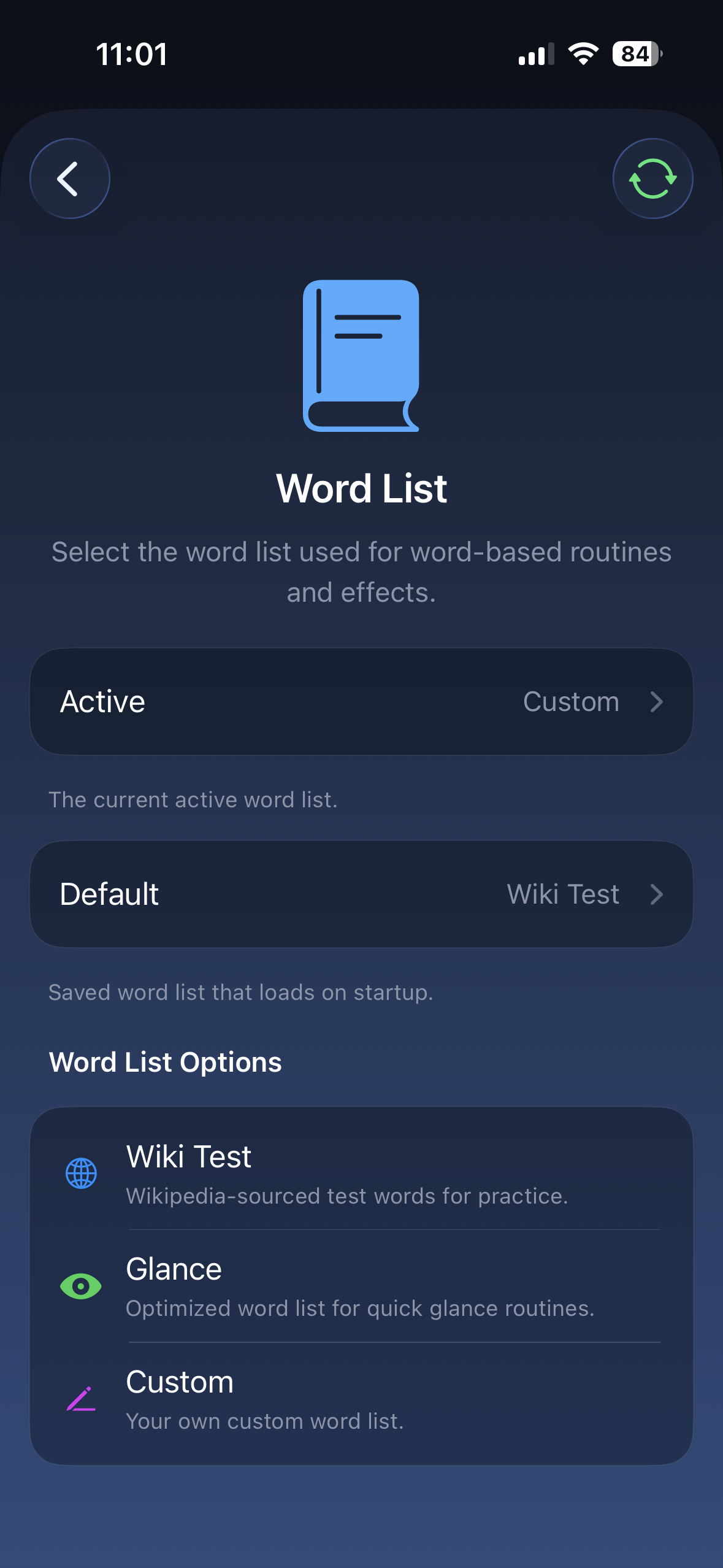
Section titled “Settings”Choose which word list the profile uses in the app. The active word list is what the remote uses right now. The default word list is saved for startup.
You can choose from the built-in lists or your own custom list.
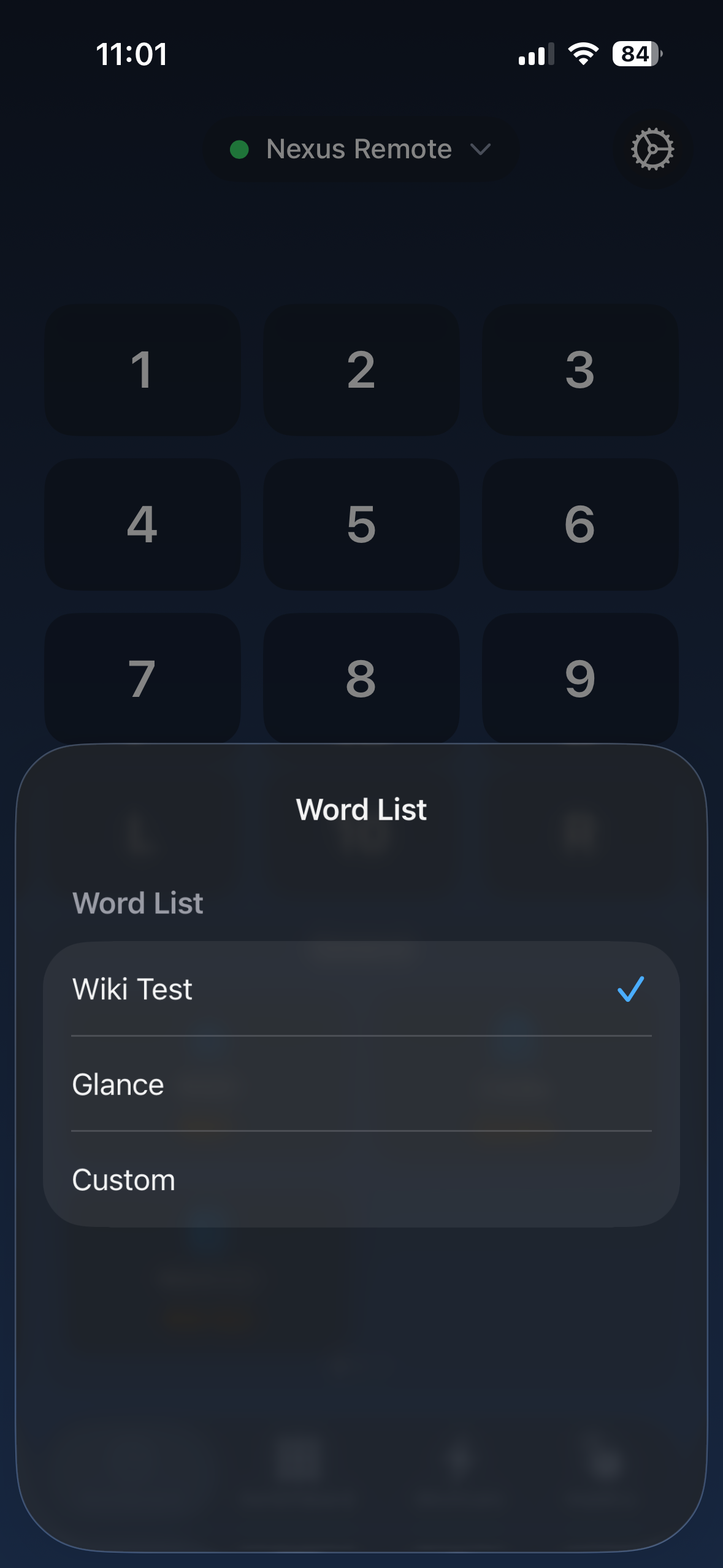
Quick select from the dashboard
Section titled “Quick select from the dashboard”Use the dashboard when you want to change the active word list quickly.
Set active or default in Word List settings
Section titled “Set active or default in Word List settings”Use Word List settings when you want to change the active word list, change the default word list, or review the available word list options.
Select it: On the remote, Page 1 · Button 7. Or pick it in the app.