Playing Cards
Send a playing card to your app for card reveals, stacked-deck routines, and effects that need a card value in a specific format.
When to use it: any card effect where your app needs to know the card.
How it works: choose how you want to enter the card, choose how the card should be sent, then match the stack and suit order your app or effect expects.
Where to change settings
Section titled “Where to change settings”The app has two places to change the active Playing Cards settings.
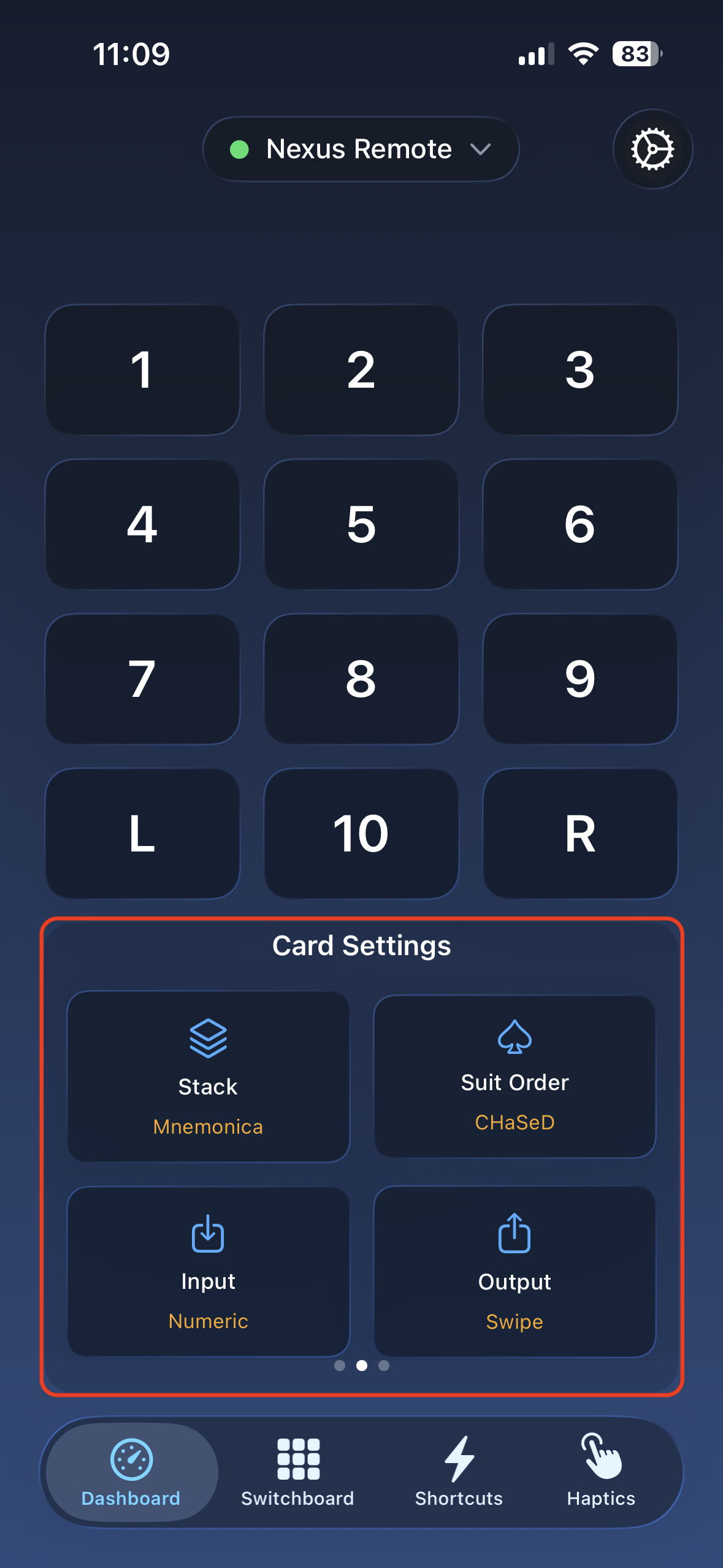
Dashboard quick settings
Section titled “Dashboard quick settings”Use the dashboard when you want fast access to the active card settings while testing or setting up an effect.
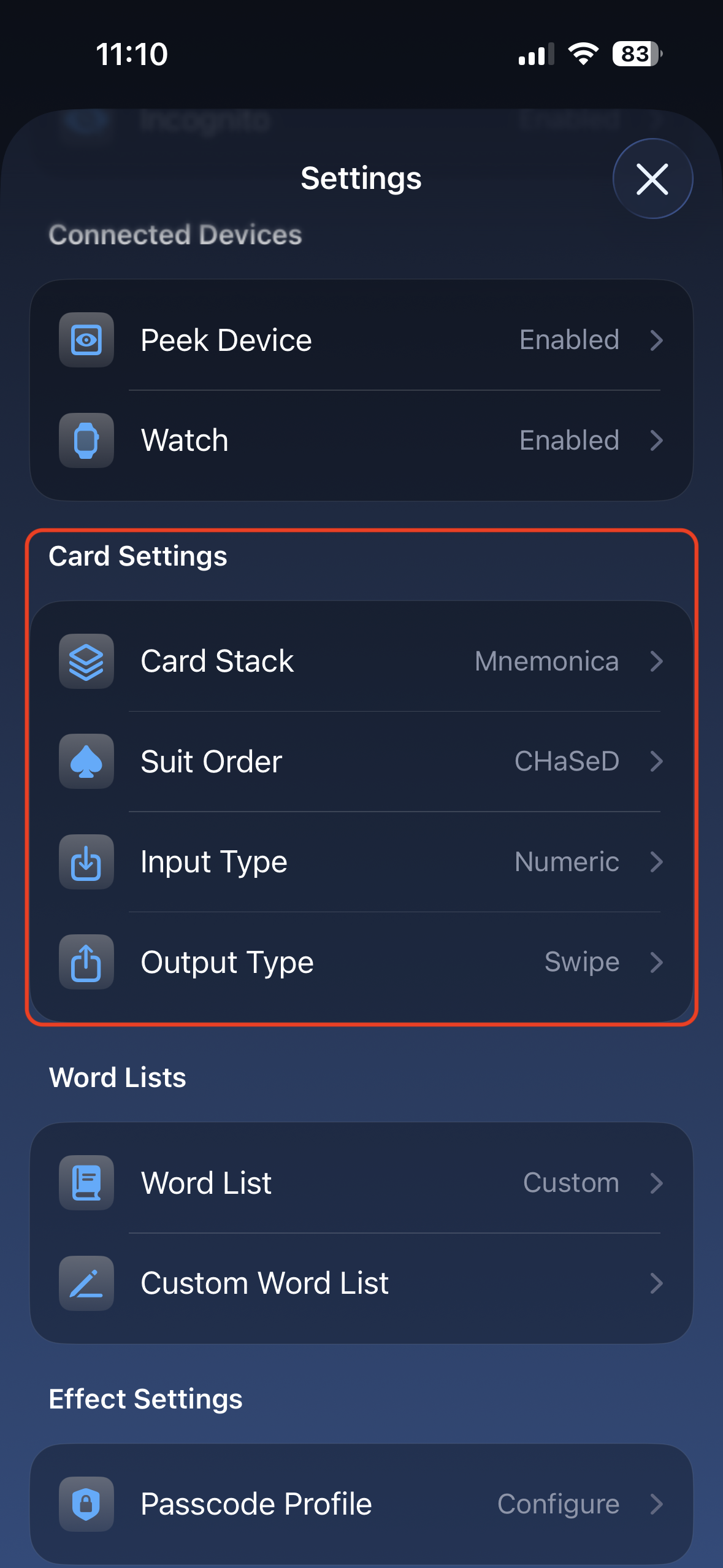
Settings page
Section titled “Settings page”Use the Settings page when you want the standard configuration view. The Playing Cards options are in Settings > Card Settings.
What you do
Section titled “What you do”Start with the setting that matches the problem you are trying to solve.
| If you need to… | Go to… |
|---|---|
| Change how you enter a card on the remote | Input Type |
| Change what the remote sends to your app | Output Type |
| Match a memorized or calculated deck stack | Card Stack |
| Match the suit order expected by an app or effect | Suit Order |
Settings at a glance
Section titled “Settings at a glance”| Setting | What it controls |
|---|---|
| Input Type | How you enter a card on the remote |
| Output Type | How the card is sent to your app |
| Card Stack | Which stack system is used when stack position matters |
| Suit Order | The suit sequence used by the selected input or output format |
For most users, Matrix Input is the easiest place to start: press the card value, then swipe for the suit. Change the other settings only when your app, effect, or stack requires a specific format.
Setup order
Section titled “Setup order”- Choose the Input Type.
- Choose the Output Type your app expects.
- If your routine uses a stack, choose the Card Stack.
- If suits are not matching, check the Suit Order.
Once these are set, select the Playing Cards profile and enter the card during your routine.
Select it: On the remote, Page 1 · Button 4. Or pick it in the app.