Switching in the App
The app has two places to switch profiles. Both can change the active profile, the one your remote is using right now. Only Profile Settings can change the default profile, the one your remote starts with next time.
| Where | Use it for | Changes the default? |
|---|---|---|
| Dashboard quick select | A fast change to the active profile | No |
| Profile Settings | Choosing the active profile or saved default | Yes |
Quick select from the dashboard
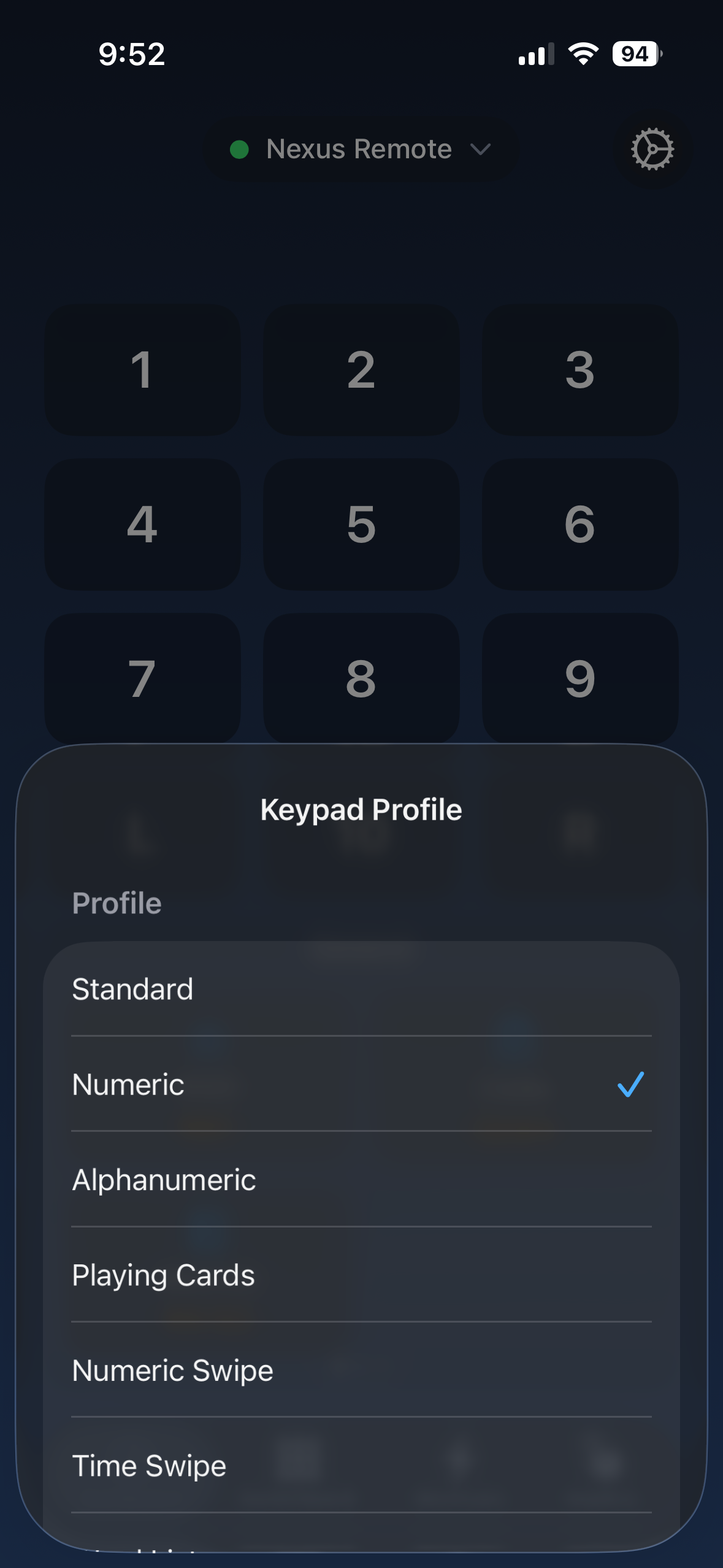
Section titled “Quick select from the dashboard”Use the dashboard when you want to change profiles quickly without opening the full settings page.
-
Open the Nexus Remote app and make sure your remote is connected.
-
From the dashboard, open the Keypad Profile selector.
-
Tap the profile you want. It becomes active on the remote right away.
-
The default profile does not change.
Set active or default in Profile Settings
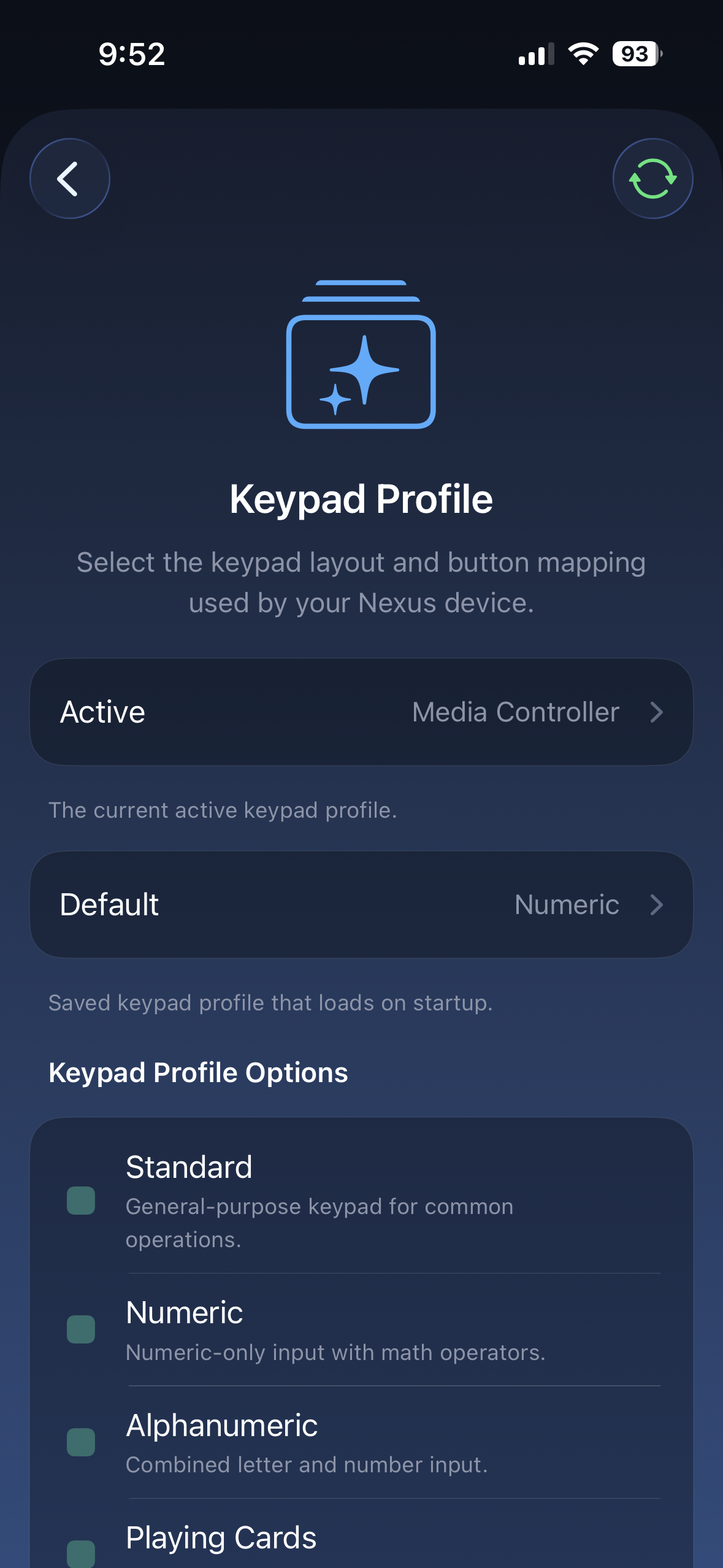
Section titled “Set active or default in Profile Settings”Use Profile Settings when you want to choose the active profile, change the profile that loads on startup, or review all profile options in one place.
-
Open the Nexus Remote app and make sure your remote is connected.
-
Open Profile Settings.
-
Tap Active to change the profile the remote is using right now.
-
Tap Default to choose the profile the remote starts with next time.
For a quick temporary change during a set, use dashboard quick select or switch on the remote. To choose what the remote starts with next time, use Profile Settings.