Time Swipe
Like Numeric Swipe, but for times (HH:MM). It sends the swipes a clock-setting screen expects, with small delays so they land reliably, and it fixes impossible times for you.
When to use it: time- or clock-based effects.
How it works: type the time as digits; the remote sends it as arrow swipes for the hour and minutes. The Left button is backspace and the Right button is space.
What you do
Section titled “What you do”Enter the time as digits. The remote turns it into the hour and minute swipes the clock screen expects.
Button map
Section titled “Button map”| Button | Sends |
|---|---|
| 1–9 | Digits 1–9 |
| 10 | 0 |
| Left | Backspace |
| Right | Space |
Settings
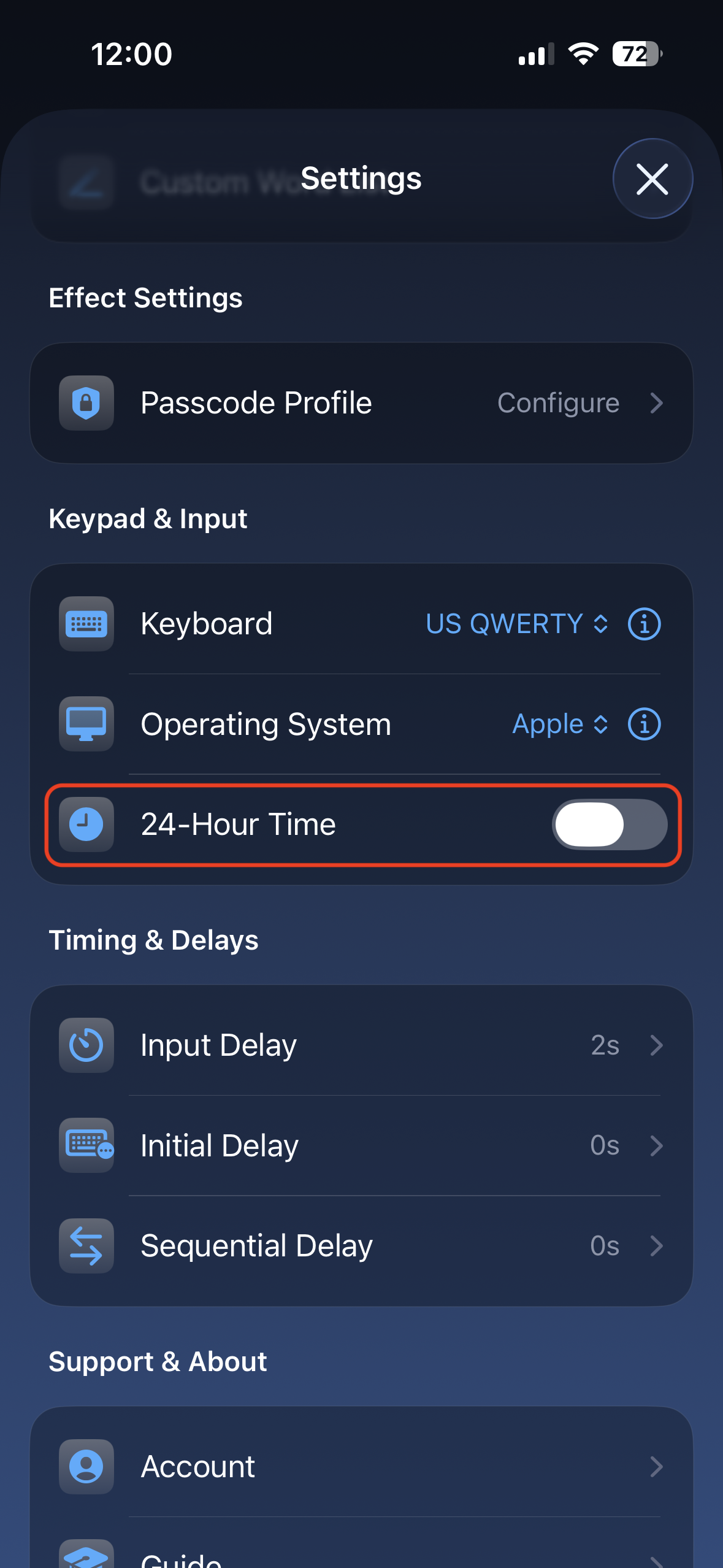
Section titled “Settings”Use the app settings when the effect needs a specific time format.
- 24-hour time, turn this on when the target clock or app expects 24-hour time. Leave it off when the target uses 12-hour time.
Select it: On the remote, Page 1 · Button 6. Or pick it in the app.